
Use the Calendar to view or add appointments.
Click Calendar in the main menu.
Use the controls at the top of the calendar to change the view to Day, Week, or Month. The controls at the top left allow you to navigate to the previous or next day (or week or month, depending on the current view).
To view a specific date, click the current displayed date at the top left and use the date selector. The single arrows change the month. You can also click the month and year title in order to quickly navigate to another month/year.
To view or edit the details of an appointment shown on the calendar, click the appointment. See Adding an Appointment for information about the appointment record fields. When you are finished, click Save, Delete or Cancel as appropriate. You are returned to the calendar where you started.
Tip You can view a list of today’s appointments on your Home page.
|
|
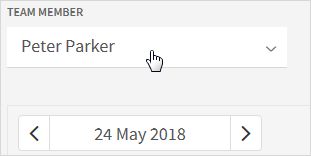
As a member of a team, you have full access to the calendars of other team members who are sharing their calendar. Use the drop-down list of team members to select the team member whose calendar you wish to access. Upon selecting a team member, the working area updates to display the calendar of the selected team member.
|

Comments
0 comments
Article is closed for comments.